


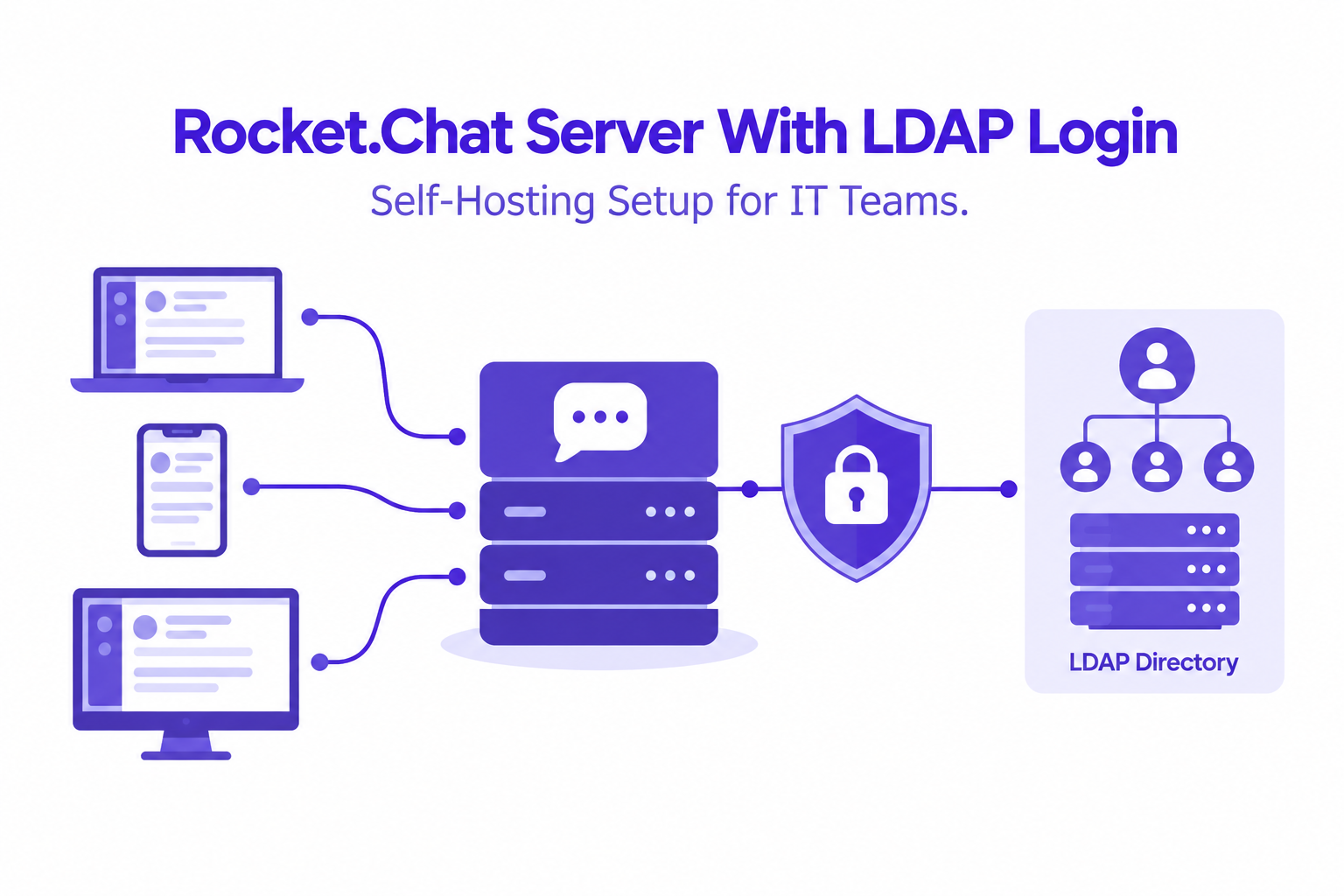
A rocket.chat server with LDAP login lets staff use directory accounts to access a private team chat workspace. IT teams can centralize identity management while keeping the chat application on their own hosted server.
AccuWeb Hosting Rocket.Chat hosting includes a pre-installed instance, initial server setup, and root access on plans that start at $4.95 per month. Use this guide to prepare the directory, configure login, test access, and plan a move from cloud chat.
Key Takeaways
- From version 9.0.0, Rocket.Chat documents LDAP on Starter and premium workspaces, but not on Community workspaces.
- Rocket.Chat Starter allows up to 50 users.
- AccuWeb Hosting Rocket.Chat plans start at $4.95 per month with 4 GB of RAM and 50 GB of storage.
- AccuWeb Hosting includes regular backups, free Let’s Encrypt SSL, and 24/7 support.
- LDAP, SAML, and OAuth offer different ways to connect staff identities to chat.
Private Rocket.Chat Hosting and Plans
Self-hosting places your chat workspace on a server you administer rather than a shared cloud chat platform. Your team controls its directory connection, authentication choices, and operational procedures.
AccuWeb Hosting includes the initial server setup and a pre-installed Rocket.Chat instance. Root and SSH access give administrators access to the server. The service supports LDAP, SAML, and OAuth integrations, as well as optional two-factor authentication.
| Plan | RAM | vCPU | Storage | Bandwidth | Price per month |
| VPS Rocket.Chat Edge | 4 GB | 1 vCPU | 50 GB | 250 GB | $4.95 |
| VPS Rocket.Chat Peak | 8 GB | 2 vCPU | 100 GB | 450 GB | $6.95 |
| VPS Rocket.Chat Power | 16 GB | 3 vCPU | 200 GB | 650 GB | $9.95 |
| VPS Rocket.Chat Supreme | 32 GB | 4 vCPU | 400 GB | 1,000 GB | $19.95 |
These plans run in Denver, New York, Frankfurt, and Hyderabad, and the price per month is the same on every billing cycle. Every plan includes 1 IP address. Other locations use the global VPS Earth +, Saturn +, Sun +, and Galaxy + plans.
Treat the hosting plan and the Rocket.Chat workspace plan as separate decisions.
| Decision | What to review |
| Hosting | Server access, backups, SSL, support, and the plan size |
| Rocket.Chat plan | LDAP availability, user allowance, and identity features |
| Directory | Reachability, account attributes, group scope, and secure transport |
Rocket.Chat’s documentation lists LDAP, SAML, and custom OAuth on Starter workspaces and not on Community workspaces. From version 9.0.0, LDAP is available on Starter workspaces and on all premium plans (Commercial, Government, and Defense). Starter allows up to 50 users, and Community allows up to 100 concurrent users.
Before 9.0.0, LDAP also works on workspaces without a license, and the admin settings show a notice that licensing will be required from 9.0.0. Check the plan of your installed version before you build the login rollout.

How to Choose Your Server
Start with the number of staff accounts and the expected pattern of use. Include administrators, external collaborators, and service accounts in your identity planning. Consider how many people will use chat at the same time.
Review how you will protect messages and attachments. A useful backup plan covers the application data, its database, configuration, and a tested restoration process. Record who can access backups and who can approve a restore.
AccuWeb Hosting offers Rocket.Chat hosting in 17 locations across North America, Europe, Africa, and Asia Pacific. Choose a region that fits your organization’s access and data-handling requirements. Test actual performance from your own office and remote networks.
For broader infrastructure planning, review the full list of Linux VPS plans. Rocket.Chat also needs an email address for every user, so teams that need a dedicated mail service can review business email hosting.
AccuWeb Hosting includes regular backups, free Let’s Encrypt SSL, and a seven-day money-back guarantee. It also offers 24/7 customer support. Read the VPS backup information for the snapshot options, and build your own maintenance schedule around the application and directory changes.
Prepare the Directory Connection
A successful rocket.chat LDAP connection setup begins with a reachable directory and a narrow user search. Identify the directory server name, the base distinguished name, and the attributes that identify staff.
Create a dedicated directory account for searches. Give it only the read access required to find eligible users and their attributes. Store its credentials securely and plan how you will rotate them.
Protect traffic between Rocket.Chat and the directory with encrypted LDAP transport. Validate the directory server’s certificate and restrict network access to the systems that need it. A public HTTPS certificate for chat, such as one from SSL certificates, does not automatically secure a separate LDAP connection.
Decide whether every directory user should be eligible for chat. A group filter can restrict access to a pilot group first. Keep a local emergency administrator account outside the directory login path and protect it with strong authentication.

Configure a Rocket.Chat Server With LDAP Login
Use Rocket.Chat’s administration settings to connect the workspace to your directory. In Rocket.Chat, open Manage, then Workspace, then Settings, then LDAP. Labels and available options can vary by version and workspace plan. Test each change before directing all staff to the new login.
- Check the plan. Verify that your installed Rocket.Chat version and workspace plan support LDAP.
- Open LDAP settings. Sign in as an administrator and find the LDAP configuration area.
- Enter the connection details. Add the directory host, secure transport settings, and bind account credentials.
- Set the search scope. Enter the base DN and user search filter for the intended directory users.
- Map login fields. Select the directory attributes that Rocket.Chat should use to locate each account.
- Test the connection. Run the connection test and resolve certificate, network, or bind errors.
- Test user searches. Use the Test LDAP Search button with pilot accounts and verify that only intended staff appear.
- Run a pilot. Sign in with test accounts, check access, and document the recovery procedure.
The search field identifies the directory attribute that a user logs in with. By default it is uid. Rocket.Chat documents uid,mail to log in with either a username or an email address, and mail to log in with an email address only. Active Directory installations commonly use sAMAccountName. The base DN, user filter, and group filter must reflect your own directory structure.
A connection test proves that the application can reach and bind to the directory. It does not prove that the search finds the correct people. Run the separate user-search test and review the results before expanding access.

Map Users and Synchronize Access
Choose a stable identifier for each person and ensure your directory records are consistent. Review usernames, email addresses, and display names before importing or synchronizing accounts. Duplicate or missing attributes can create confusing account matches.
Rocket.Chat requires every user account to include an email address. If the field is missing in your directory, user creation fails during synchronization, so check the attribute before you run the first sync.
Plan the relationship between existing Rocket.Chat users and directory users before enabling synchronization. Make sure directory usernames do not match existing local usernames, and test account matching with a small pilot. Avoid assuming that accounts with similar names should automatically represent the same person.
Rocket.Chat’s LDAP settings include an immediate synchronization action. Use it after reviewing the search scope and mappings. Check a sample of results, including users who should be excluded by the group filter.
Document the joiner, mover, and leaver process. When a person leaves, disable directory access and follow your organization’s session and account-removal procedures. Test the complete workflow rather than assuming a directory change ends every existing session.
Compare Rocket.Chat Plans for Identity Features
Rocket.Chat’s own documentation separates the free Starter and Community workspaces. The table shows the identity-related differences, so you can choose the plan before you design the login.
| Item | Starter | Community |
| Users | Up to 50 users | Up to 100 concurrent users |
| LDAP, SAML, and custom OAuth | Available | Not available |
| Multi-factor authentication | Available | Basic identity management only |
| Hosting | Self-managed and self-hosted | Self-hosted only |
| Support | Community knowledge and documentation | Community documentation, forums, and guides |
Rocket.Chat’s documentation checked on 7 November 2026. The premium plans (Commercial, Government, and Defense) use custom user counts. AccuWeb Hosting VPS plans work with a Rocket.Chat license that you bring yourself, and the license is a separate purchase from the hosting plan.
Compare LDAP, SAML, and OAuth Login
LDAP connects Rocket.Chat to a directory for user searches and authentication. It suits teams that want to use existing directory accounts and manage an appropriate network connection to the directory.
SAML connects the application to an identity provider for single sign-on. OAuth connects applications through an identity provider’s authorization flow. Your identity team should evaluate the supported configuration and account mapping for its chosen provider.
These options are not interchangeable configuration switches. They differ in where authentication occurs, how user attributes reach Rocket.Chat, and where access policies are enforced. Test sign-in, sign-out, account creation, and recovery for the chosen method.
AccuWeb Hosting supports integration with LDAP, SAML, and OAuth identity providers. Rocket.Chat plan requirements and identity-provider requirements remain separate from the hosting service.

Protect Staff Login With Two-Factor Authentication
Rocket.Chat two factor login for staff adds a second verification step to account access. AccuWeb Hosting offers optional two-factor authentication, and Rocket.Chat’s Starter documentation lists multi-factor authentication. Configure the method that fits your workspace and identity architecture.
For SAML or OAuth sign-in, review MFA policies at the identity provider. For directory-based login, test the complete authentication flow and verify which system enforces the second factor. Do not assume that enabling an identity integration automatically enforces MFA for everyone.
Define enrollment, device replacement, recovery, and administrator access procedures. Pilot them with staff before making MFA a standard requirement. Keep recovery methods protected and limit who can reset them.
A Microsoft Research study published in May 2023 estimated that MFA reduced the risk of compromise by 99.22% across the Microsoft Azure Active Directory accounts it studied. The same study estimated a 98.56% reduction among accounts with leaked credentials. These estimates describe the study population, not Rocket.Chat specifically.

Secure and Maintain the Workspace
Use HTTPS for staff access and maintain encrypted connections to the directory. AccuWeb Hosting includes free Let’s Encrypt SSL for Rocket.Chat hosting. Review certificate status and ensure your chosen hostname matches the certificate.
Limit administrative access to named staff. Use SSH access carefully, protect privileged credentials, and remove access when duties change. Keep the operating system, Rocket.Chat, and related components on a documented update schedule. Rocket.Chat supports each version for six months after release, so plan upgrades before a version reaches end of life.
AccuWeb Hosting includes regular backups. Establish a restoration procedure that covers both chat data and configuration. Practice restoring to an isolated environment and check that users, channels, and attachments are available.
Monitor login failures, directory connectivity, disk usage, and application health. Route alerts to an owner who can respond. Review access logs according to your organization’s privacy and retention policies.

Move From Cloud Chat
Start with an inventory of channels, users, integrations, and retention requirements. Decide which content must move and which content can remain in an archive. Set expectations with staff before the cutover.
Create a pilot workspace structure and invite representatives from different teams. Test directory login, MFA enrollment, notifications, and access from managed devices. Give pilot users a way to report confusing account matches or missing channels.
Migration methods depend on the source platform and the Rocket.Chat features available to your workspace. Test any import process with a small data set first. Review the results for membership, timestamps, attachments, and permissions.
Choose a cutover window and communicate the new address and login instructions. Keep a documented rollback plan and assign owners for directory, hosting, and application issues. After launch, review support requests and remove temporary pilot access.
Troubleshoot and Check Readiness
If the connection test fails, check DNS, network access, encrypted transport, and the bind account. Review the certificate chain before changing security settings. A successful bind followed by an empty search points toward the base DN, search filter, or account permissions.
If a user appears in the search but cannot sign in, inspect the login field and the user’s directory attributes. Check group eligibility and the identity policy. If users are not created during synchronization, check that each directory record has an email address. Use logs to narrow the issue without exposing passwords or sensitive directory data.
Before launch, complete this checklist:
- The Rocket.Chat plan supports the intended LDAP setup.
- The directory connection uses encrypted transport and a trusted certificate.
- The bind account has appropriate read access.
- Search results include pilot staff and exclude unauthorized users.
- Every synchronized user has an email address.
- Account mappings and synchronization results have been reviewed.
- MFA enrollment and recovery have been tested.
- An emergency administrator can access the workspace.
- A backup restoration has been practiced.
- Staff know the new workspace address and support process.
Frequently Asked Questions
Can Rocket.Chat authenticate users against LDAP?
Yes. Rocket.Chat documents LDAP for eligible workspace plans. From version 9.0.0, its documentation lists Starter and premium workspaces as eligible, but not Community workspaces.
How many users does Rocket.Chat Starter allow?
Starter allows up to 50 users. Community allows up to 100 concurrent users, and the premium plans use custom user counts.
Does the server need access to the directory?
Yes. Rocket.Chat needs a network path to the directory for its LDAP connection. Secure that path and test the connection from the server.
Can staff sign in with an email address?
Rocket.Chat documents uid,mail as a search-field option for either username or email login, and mail for email only. Your directory must contain the relevant attributes, and the search scope must find the user.
Is LDAP the same as single sign-on?
No. LDAP is a directory protocol, while single sign-on describes an authentication experience. SAML or an OAuth-based identity integration can support a centralized login flow.
Can I restrict chat access to a directory group?
Rocket.Chat documents a group filter in its LDAP setup example. Test the filter with accounts that should and should not gain access.
How much does Rocket.Chat hosting cost?
AccuWeb Hosting Rocket.Chat plans start at $4.95 per month with VPS Rocket.Chat Edge. Peak costs $6.95, Power $9.95, and Supreme $19.95, and every plan has a 7-day money-back guarantee.
Does hosting include a Rocket.Chat license?
No. AccuWeb Hosting VPS plans work with a Rocket.Chat license that you bring yourself. The hosting plan and the license are separate purchases.
What happens if the directory is unavailable?
Directory-dependent login can fail when the connection is unavailable. Keep a protected emergency administrator account and document your recovery process.
How should I test a backup?
Restore it to an isolated environment and check application configuration, users, channels, and attachments. Record the outcome and fix any gaps before relying on the procedure.
Launch Your Private Chat Workspace
A rocket.chat server with LDAP login gives staff a familiar directory-based sign-in for a private chat workspace. Start with a Rocket.Chat plan that supports LDAP, secure the directory connection, and test account searches before rolling out access.
Choose LDAP, SAML, or OAuth based on your identity architecture. Add MFA, a protected recovery account, and a tested backup process. A small pilot helps your team resolve identity and migration issues before the wider launch.


